You can integrate a WhatsApp account with Comm100 Ticketing & Messaging to provide customer support through WhatsApp. Once the integration is configured, incoming WhatsApp messages are automatically converted into tickets, allowing agents to manage conversations directly from Ticketing & Messaging.
Comm100 currently supports the following WhatsApp integration methods:
- WhatsApp Cloud: Connects your account using the WhatsApp Business Cloud API provided by Meta.
- Twilio WhatsApp: Connects your account through Twilio's WhatsApp API.
Before configuring WhatsApp Cloud in Comm100, you must create a Meta Developer account and complete the WhatsApp Business onboarding process, including:
- Creating an app in Meta for Developers
- Associating a Business Manager account
- Generating a permanent access token
- Configuring a webhook
To learn more on WhatsApp’s onboarding process, see this article.
To integrate a WhatsApp account using WhatsApp Cloud, follow these steps:
- Log in to your Comm100 Control Panel.
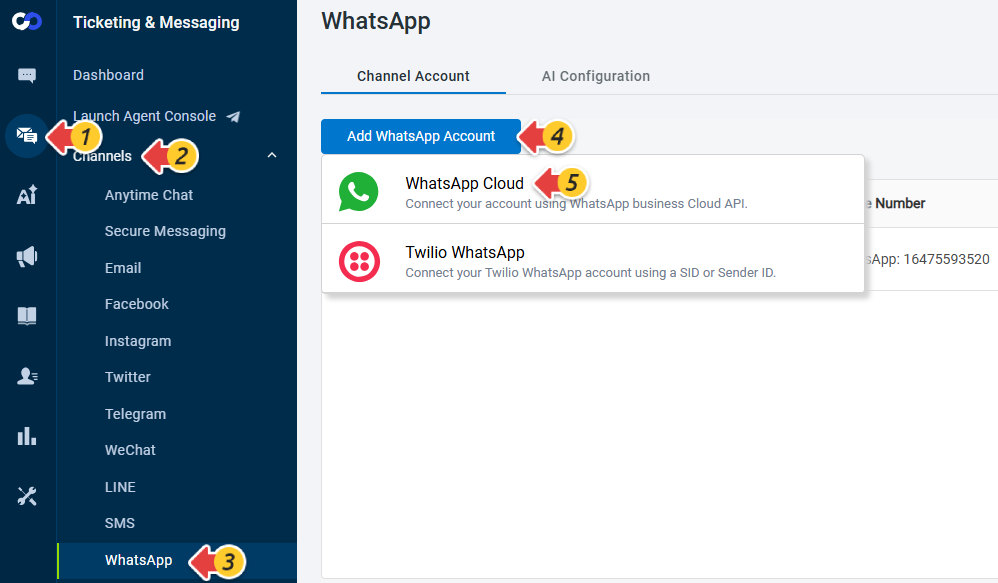
- From the left navigation menu, go to Ticketing & Messaging > Channels > WhatsApp.
- Click Add WhatsApp Account and select WhatsApp Cloud.
- On the WhatsApp page, do the following:
- Enter a name for the account
- Turn on the Enable toggle.
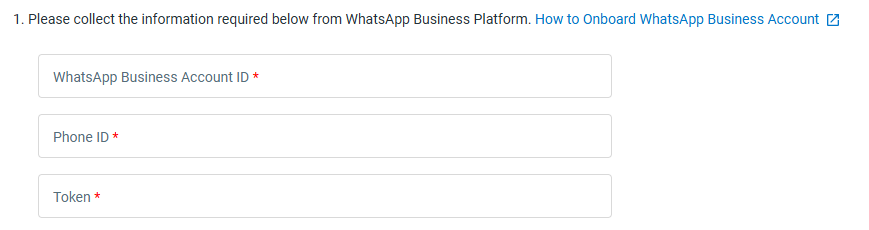
- Enter the WhatsApp Business Account ID, Phone ID, and Token obtained from the WhatsApp Business Platform.
- Copy the Callback URL and Verify token displayed in Comm100 and configure them in the WhatsApp Business Platform webhook settings. To learn more, refer to Step 4: Set Up a Webhook of in this article.
- Select Allow agent to send media files if agents should be able to send media attachments through WhatsApp.
- Click Save.


The WhatsApp account is added successfully. After saving, the Save & Test button becomes available, allowing you to verify the connection.
Test your WhatsApp Connection
Once you have added a new WhatsApp account, you can test its connection by clicking the Save & Test button. A series of actions in the background validates the connection between your WhatsApp Business account and Comm100.

If the connection fails at Step 2, you may not have filled in the Callback URL or Verify Token fields correctly for webhook configuration on the WhatsApp Business Platform.

If the connection fails at Step 3, you may not have configured your Phone ID or Token correctly.
Before configuring Twilio WhatsApp in Comm100, you would need to set up an account and phone number with Twilio.
To integrate a WhatsApp account using Twilio, follow these steps:
- Log in to your Comm100 Control Panel.
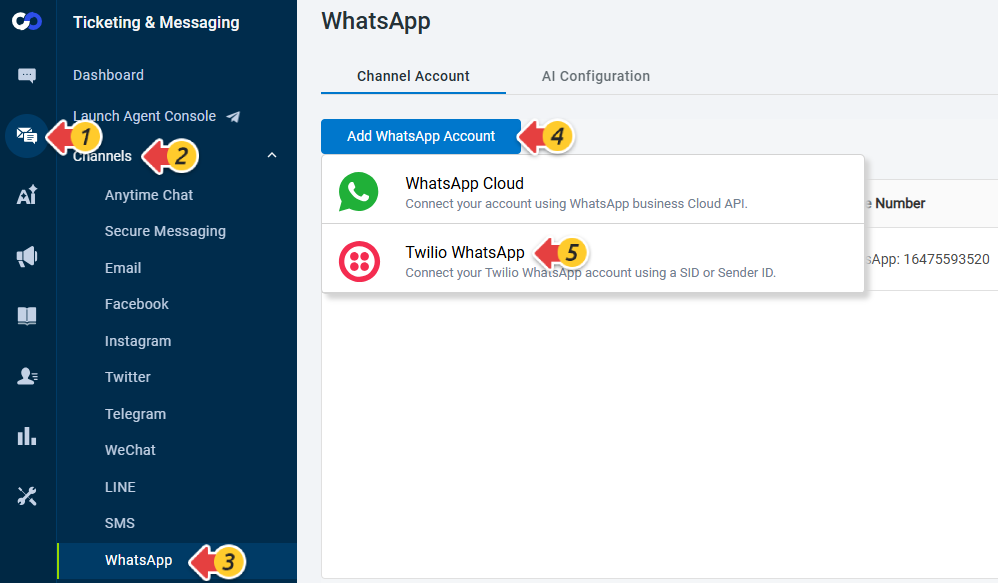
- From the left navigation menu, go to Ticketing & Messaging > Channels > WhatsApp.
- Click Add WhatsApp Account and select Twilio WhatsApp.
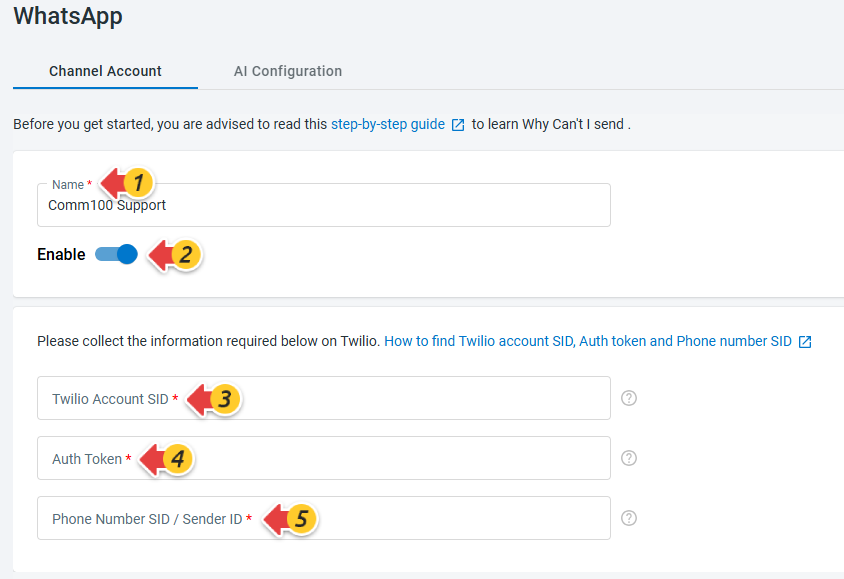
- On the WhatsApp page, do the following:
- Enter an account name.
- Turn on the Enable toggle.
- Enter Twilio Account SID, Auth Token, and Phone Number SID / Sender ID.
- Select Allow agent to send media files if agents should be able to send media attachments through WhatsApp.
- Click Save.
- Next, log in to your Twilio account and navigate to Develop > Messaging > Senders > WhatsApp senders, then update the Webhook URL for incoming messages.Note: To locate the webhook URL in Comm100, see this article.

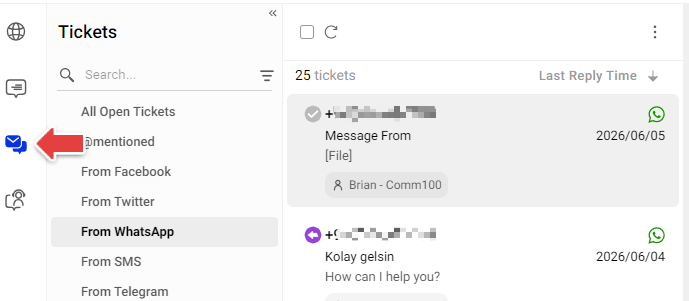
The WhatsApp account has been added. You can add more if you have more than one WhatsApp account you want to be managed using Comm100. The integration is now complete. Your agents will now be able to respond to incoming WhatsApp messages from the Ticketing & Messaging tab of the Agent Console.
In some cases, you need to add an Area Code to the WhatsApp number to send WhatsApp messages from Comm100. To learn more about adding Area Code, see this article.
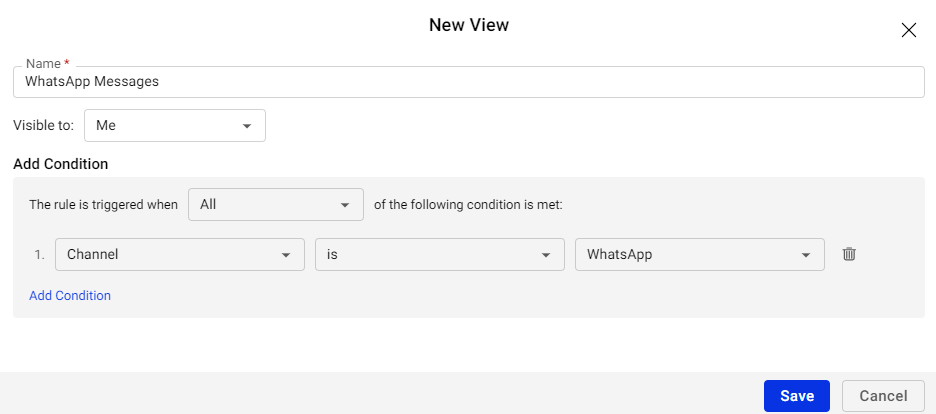
You can also create custom Views to manage WhatsApp conversations separately from other ticket channels. This can help agents quickly locate and prioritize WhatsApp tickets. To learn more about Views in Ticketing & Messaging, see this article.